
Set up your sending domain
Authenticate a domain so your cold email lands in the inbox instead of spam. This is the single most important setup step for deliverability — skip it and even perfectly-written email will be filtered.
Who this is for: Anyone connecting a domain to send outreach from cognitoAI. You'll need admin access to the domain's DNS.
What you'll do: Add three DNS records (SPF, DKIM, DMARC), verify them, and start a warmup so mailbox providers learn to trust your domain.
Time: ~15 minutes of setup, then 2–3 weeks of automated warmup before you send at volume.
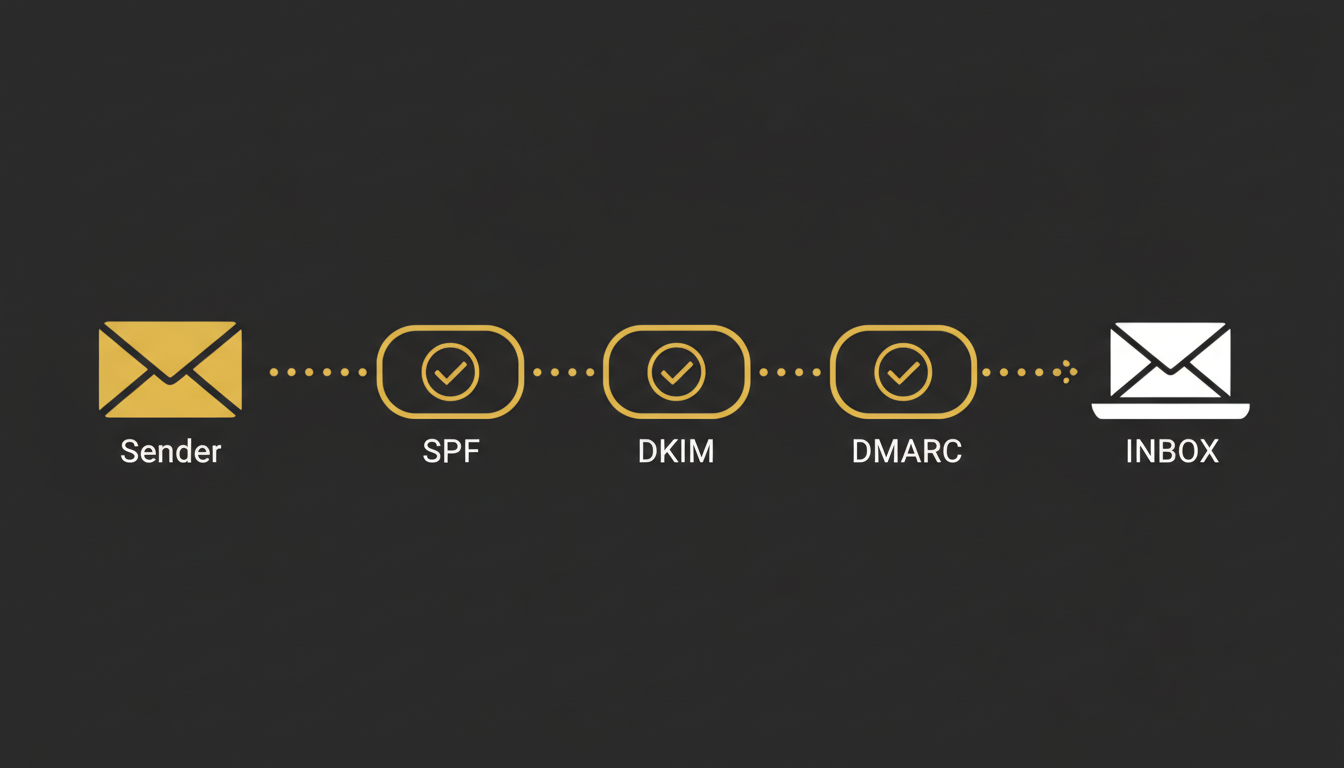
Each record proves a different thing about your mail: SPF proves which servers may send for you, DKIM proves the message wasn't altered, and DMARC tells providers what to do if either check fails. This 3-minute explainer walks through all three:
Before you begin
Use a separate domain from your main one. Send from
get-acme.comoracme-mail.com, never your primaryacme.com. If a cold campaign hurts a sending domain's reputation, you don't want that touching the domain your customers email.You can edit DNS records for the sending domain (Cloudflare, Namecheap, GoDaddy, Route 53, etc.).
The domain is at least a few weeks old. Brand-new domains are treated with suspicion; register the sending domain before you need it.
Never send cold email from your primary domain. One spam-trap hit can land your root domain on a blocklist and disrupt your real business email. Sending domains are deliberately disposable.
Steps
In cognitoAI, go to Settings → Sending domains → Add domain and enter your sending domain.
cognitoAI shows you three records to add. Open your DNS provider in another tab and add each one exactly as shown.
Add the SPF record — it authorizes cognitoAI's servers to send for your domain:
Type: TXT
Host: @
Value: v=spf1 include:_spf.cognitoai.com ~all
Add the DKIM record — it cryptographically signs every message so providers can verify it wasn't forged. Use the exact selector and key cognitoAI generated for you:
Type: TXT
Host: cai._domainkey
Value: v=DKIM1; k=rsa; p=MIGfMA0GCSq...(your unique public key)
Add the DMARC record — it tells providers what to do with mail that fails SPF or DKIM, and where to send reports. Start at
p=noneso you can watch reports before enforcing:
Type: TXT
Host: _dmarc
Value: v=DMARC1; p=none; rua=mailto:dmarc@your-sending-domain.com
Back in cognitoAI, click Verify records. DNS can take up to a few hours to propagate, though it's often minutes.
Verify it worked
Each record turns green in Settings → Sending domains once cognitoAI can read it. All three green means your domain is authenticated.
To confirm independently, send a test to a Gmail address, open the message, and choose Show original. You should see:
SPF:   PASS with domain your-sending-domain.com
DKIM:  PASS with domain your-sending-domain.com
DMARC: PASS
Three PASS lines mean providers can trust mail from this domain. If any says FAIL or NEUTRAL, jump to Troubleshoot.
Authentication is necessary, not sufficient. Passing SPF/DKIM/DMARC gets you eligible for the inbox — it does not guarantee it. Reputation (built through warmup and low complaint rates) decides placement. Do both.
Warm up before you send at volume
A brand-new sending domain that suddenly blasts 500 emails/day looks exactly like a spammer. Turn on Auto-warmup right after verification. cognitoAI will send a slowly increasing number of low-volume, human-like emails between warmup mailboxes, opening and replying to them, so providers see a normal, trusted sending pattern.
Week | Real campaign volume/day | What warmup is doing |
|---|---|---|
1 | 0 | Warmup only — building baseline reputation |
2 | 10–20 | Ramping; keep an eye on complaint rate |
3 | 30–50 | Approaching steady state |
4+ | Your target (cap ~50/mbx) | Keep warmup running in the background |
Do not turn warmup off once you're sending — it offsets the reputation cost of real campaigns.
Troubleshoot
DMARC says
FAILeven though SPF and DKIM look right? DMARC also checks alignment — the domain in yourFrom:address must match the domain that passed SPF/DKIM. Send fromyou@your-sending-domain.com, not a different domain.SPF says
PermError/ "too many DNS lookups"? SPF allows a maximum of 10 nested lookups. If you chained severalinclude:statements, you've exceeded it. Remove providers you no longer use, or flatten the record.DKIM won't verify? The most common cause is a DNS provider that split or wrapped the long public key across lines, or auto-appended your domain to the host (making
cai._domainkey.your-domain.com.your-domain.com). Re-paste the value as one unbroken string and enter the host exactly as shown.Records still not green after a few hours? Check for a typo in the host field and confirm you added them to the sending domain's zone, not your primary domain's. Use a public DNS checker to see what the record actually resolves to.
Everything passes but mail still lands in spam? That's a reputation problem, not an authentication problem. Confirm warmup is running, your copy isn't triggering spam filters, and the domain isn't on a blocklist (check MXToolbox).